Phish Alert Button
- James Meyer
- Gregory Neumarke
Employees have quick access to a Phish Alert Button, or PAB, within Outlook. Please use the Phish Alert Button in Outlook to report any email that you suspect to be phishing.
The Phish Alert Button will remove the suspected email from your inbox and allow it to be examined by North Park's IT department. You will get a response for each email reported. If determined to be legitimate, the message will be released back to you. If the IT security team determines that the message is malicious, then they will evaluate the extent of the attack and take appropriate action.
If the email you report turns out to be a simulated phishing attack as part of our Security Awareness Training, you will immediately seen a pop-up message congratulating you for reporting it.
By using the Phish Alert Button you protect yourself and others at North Park. The Phish Alert Button is not for spam or other unwanted emails.
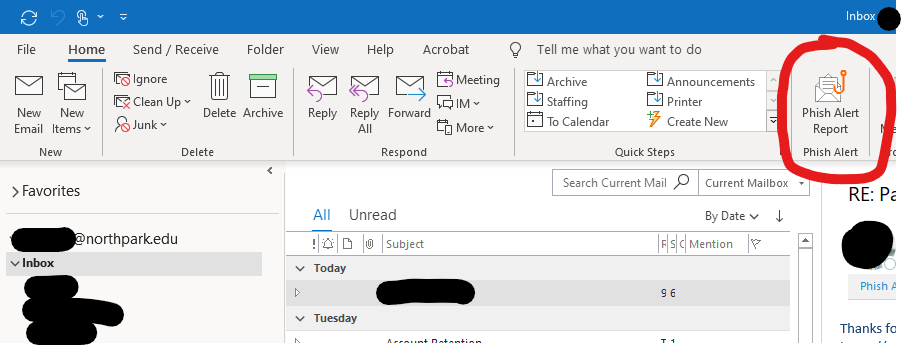
In this view, to report an email as a phishing email:
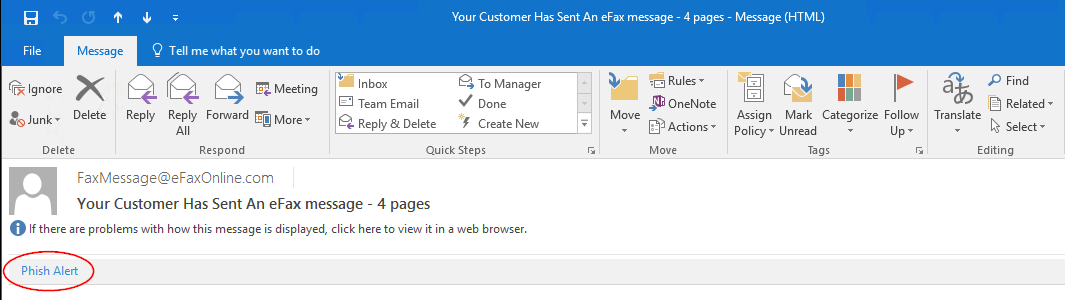
- Click the Phish Alert button while the email is open.
- A prompt will ask you if you want to report the email as a phishing email. Click Yes to report the email, or click No to not report the email.
The PAB add-in will appear as a clickable Phish Alert tab in any opened email.
- For Employees, the PAB icon will appear in the drop-down menu of an open email.

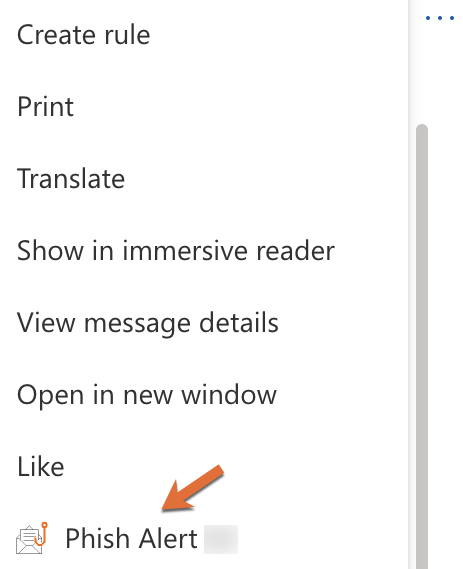
To report an email as a phishing email
- Click the PAB icon
- A sidebar prompt will ask you if you are sure you want to report the email as a phishing email. Click the Phish Alert button to report the email.
Outlook Mobile App (Android)
To report an email as a phishing email:
- On any open email, tap the three dots at the top-right of the screen.
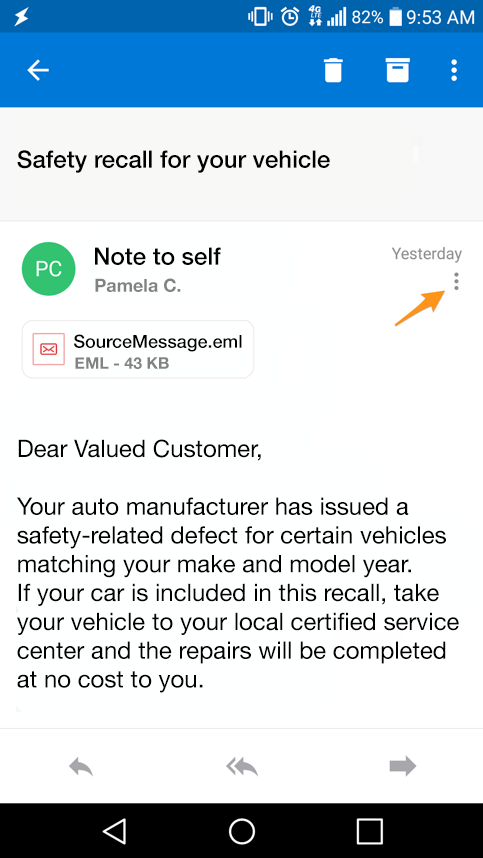
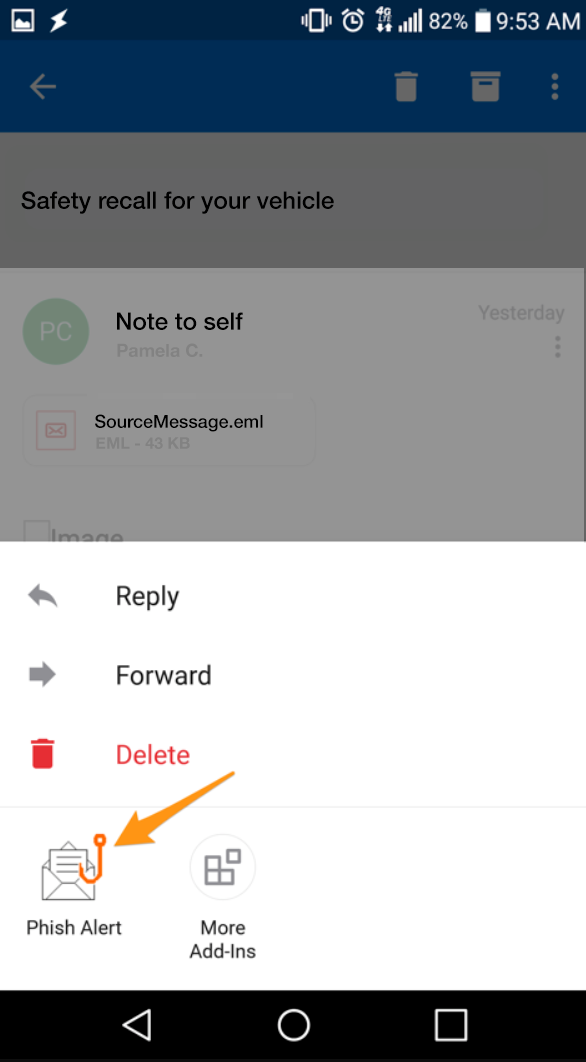
- The Phish Alert add-in will appear. Tap the Phish Alert add-in.
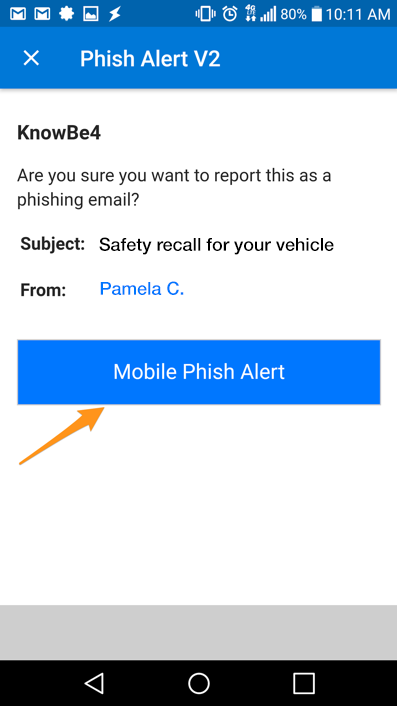
- A prompt will ask you if you are sure you want to report the email as a phishing email. Tap the Mobile Phish Alert button to report the email.
- If you have successfully reported a simulated phishing email sent on behalf of your organization, a congratulatory message will display. Click OK to close it.

Outlook mobile app (iOS)
To report an email as a phishing email:
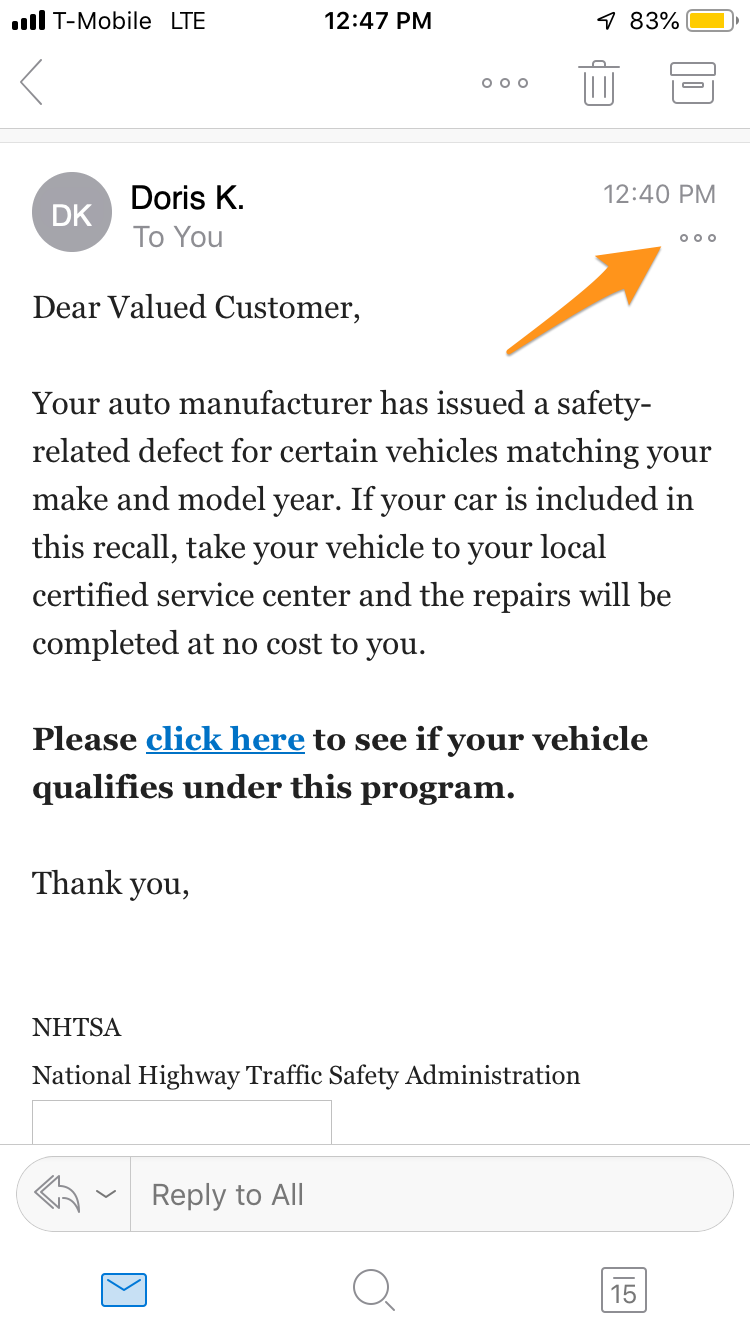
- On any open email, tap the three dots at the top-right of the screen.
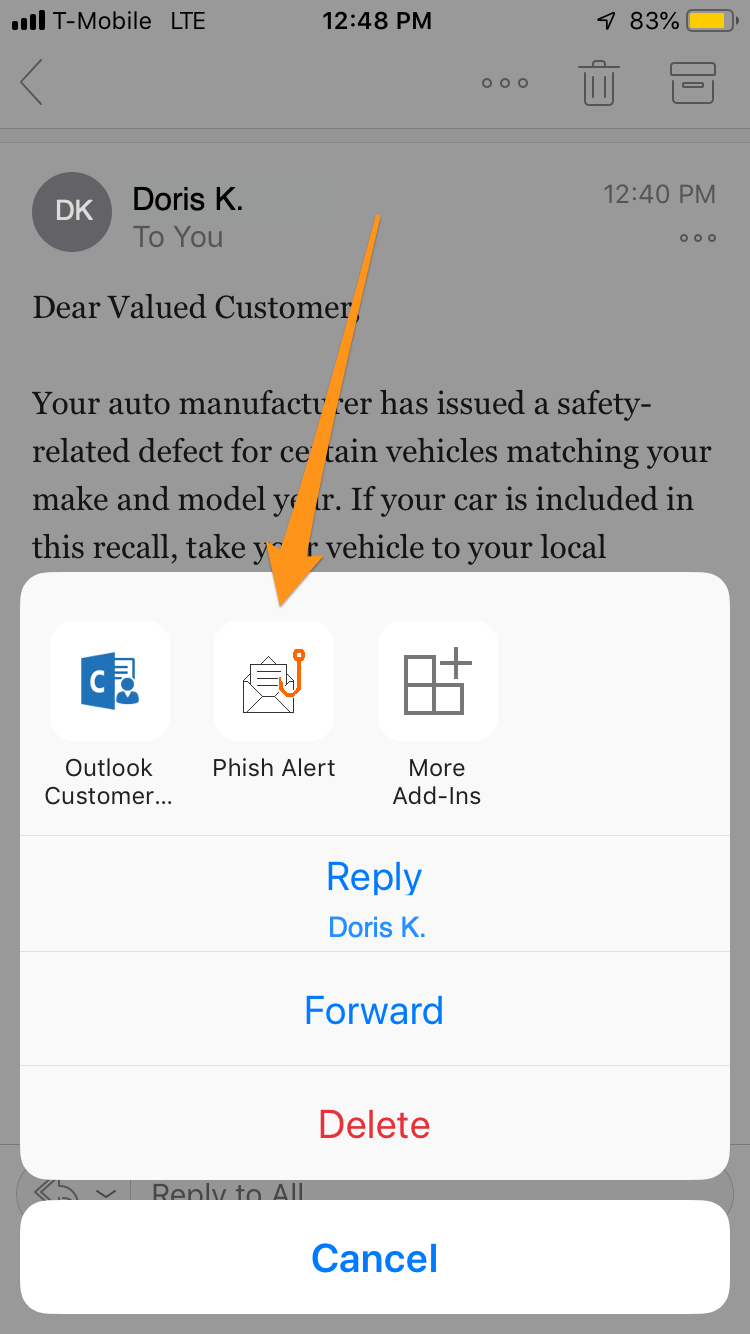
- The Phish Alert add-in will appear. Tap the Phish Alert add-in.
- A prompt will ask you if you are sure you want to report the email as a phishing email. Tap the Phish Alert button to report the email.
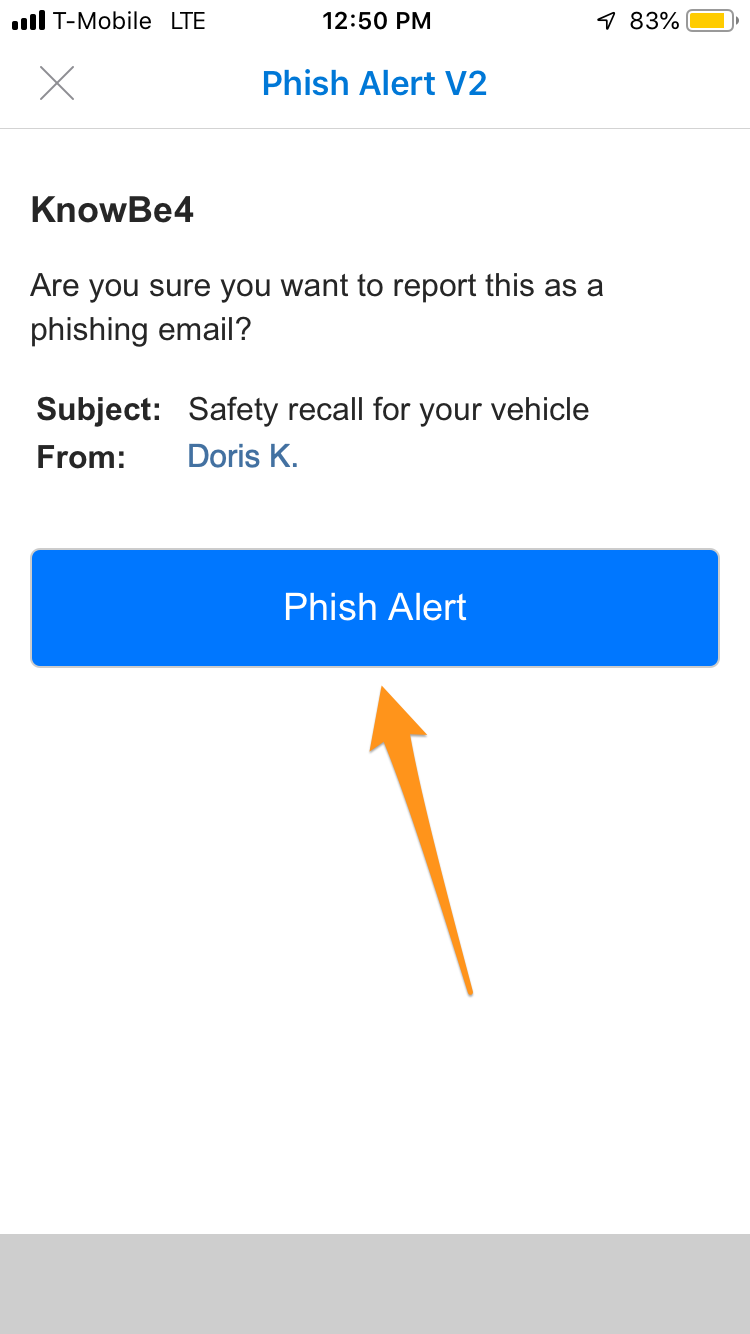
- If you have successfully reported a simulated phishing email sent on behalf of your organization, a congratulatory message will display. Click OK to close it.

Student Reporting - Shared Mailbox Reporting
Students can report Phishing emails by forwarding the suspicious email to:
phish@northpark.edu
If you need to report a phishing email that came into an Office 365 Shared Mailbox, you will also need to use the forwarding method.
Ideally, in desktop Outlook, use Control-Alt-F (or another method) to forward the email "as an attachment."